Product update
Your loyalty card, now in Apple Wallet & Google Wallet
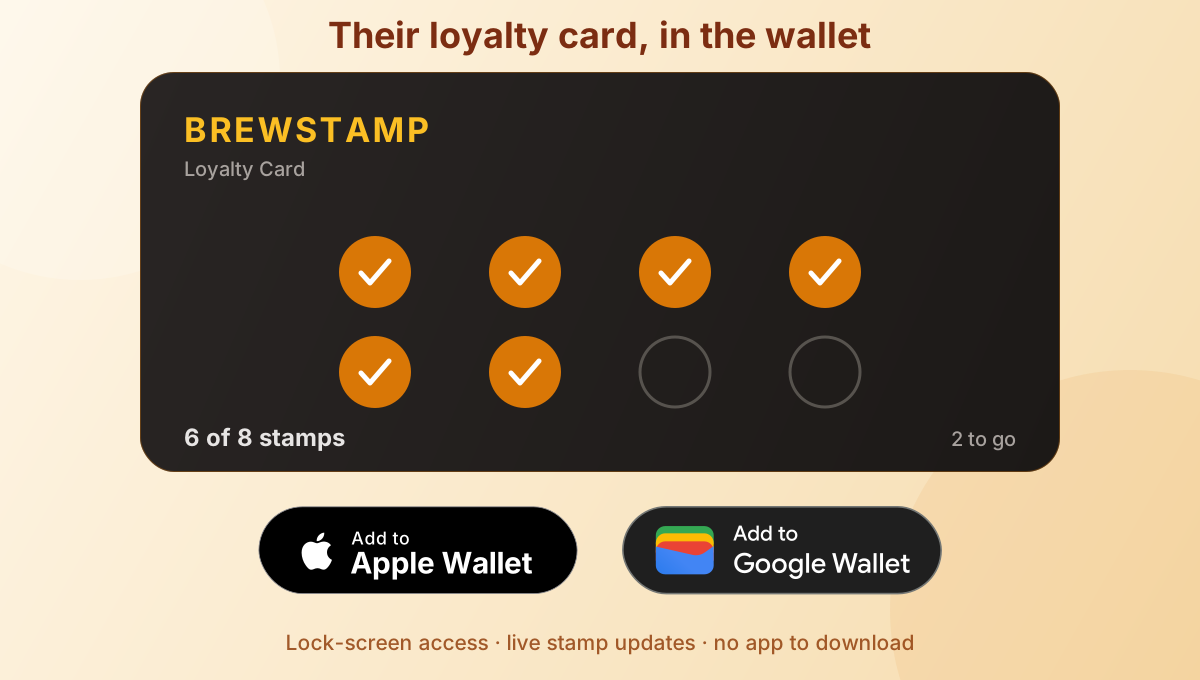
Customers can save their Brewstamp card straight to Apple Wallet or Google Wallet — right next to their boarding passes and concert tickets. It updates itself every time they earn a stamp, and there's still nothing to download.
Published
The short version
When a customer opens their card, they now see an Add to Apple Wallet or Add to Google Walletbutton matching their phone. One tap and the card lives in their wallet — fully branded with your logo and colours. It's available on every plan, including Free. Just flip the wallet toggle in Shop Setup.
Why put a loyalty card in the wallet?
The browser card has always been the heart of Brewstamp — scan the QR code, the card opens, no app store, no account. That works beautifully at the counter. But between visits, a bookmark or a browser tab is easy to lose. The wallet fixes that.
Once the card is in Apple Wallet or Google Wallet, it's one swipe from the lock screen. No hunting through browser history. And because the pass is tied to your customer's real wallet, it's exactly where they already look when they pay for coffee.


Stamps that update on their own
This is the part that makes a wallet pass worth having. When you approve a stamp at the counter, the customer's wallet pass updates automatically — the new stamp count shows up without them re-opening anything. Earn your free coffee and the reward state changes too.
It's the same live data as the browser card, just surfaced in two more places. A customer can use the QR card at the counter and still glance at their wallet pass on the train home — both stay in sync.
Does this change how stamping works?
No — the counter flow is identical. The customer still scans your QR code (or opens their wallet pass, which carries the same code), requests a stamp, and you approve it on your device in real time. The wallet pass is an extra home for the card, not a different system. Your staff don't need to learn anything new.
How to turn it on
- 1Open your dashboard and go to Shop Setup.
- 2Under Customer experience, switch on Apple & Google Wallet passes.
- 3Save. From now on, every customer who opens their card sees the Add to Wallet button for their phone.
- 4Your wallet pass uses the same logo and brand colours as your card — set those once and they carry across.
FAQ
Do customers still need an app?+
No. Apple Wallet and Google Wallet are already built into every iPhone and Android phone — there's nothing to download. The customer taps Add to Wallet on their card and the pass appears in the wallet they already have.
Which plans include wallet passes?+
Every plan, including Free. The Free plan is capped at 50 stamps, so growing shops will upgrade as they scale — but wallet passes aren't locked behind a paywall.
Does the pass update when a customer earns a stamp?+
Yes. When you approve a stamp, the wallet pass refreshes automatically with the new count. Customers don't have to re-add or re-open anything.
Is the wallet pass branded?+
Yes — it carries your logo and your card's accent colour, so it looks like your cafe in the customer's wallet, not a generic Brewstamp pass.
What if a customer prefers the browser card?+
That's completely fine. The browser card still works for everyone, on every phone. The wallet pass is an optional upgrade, not a replacement.